SnipeOS builds on LXQt instead of gutting it. The connective tissue of daily use stays small and fast. FeatherPad and nobleNote live with the office and writing tools as well.
PCManFM-Qt
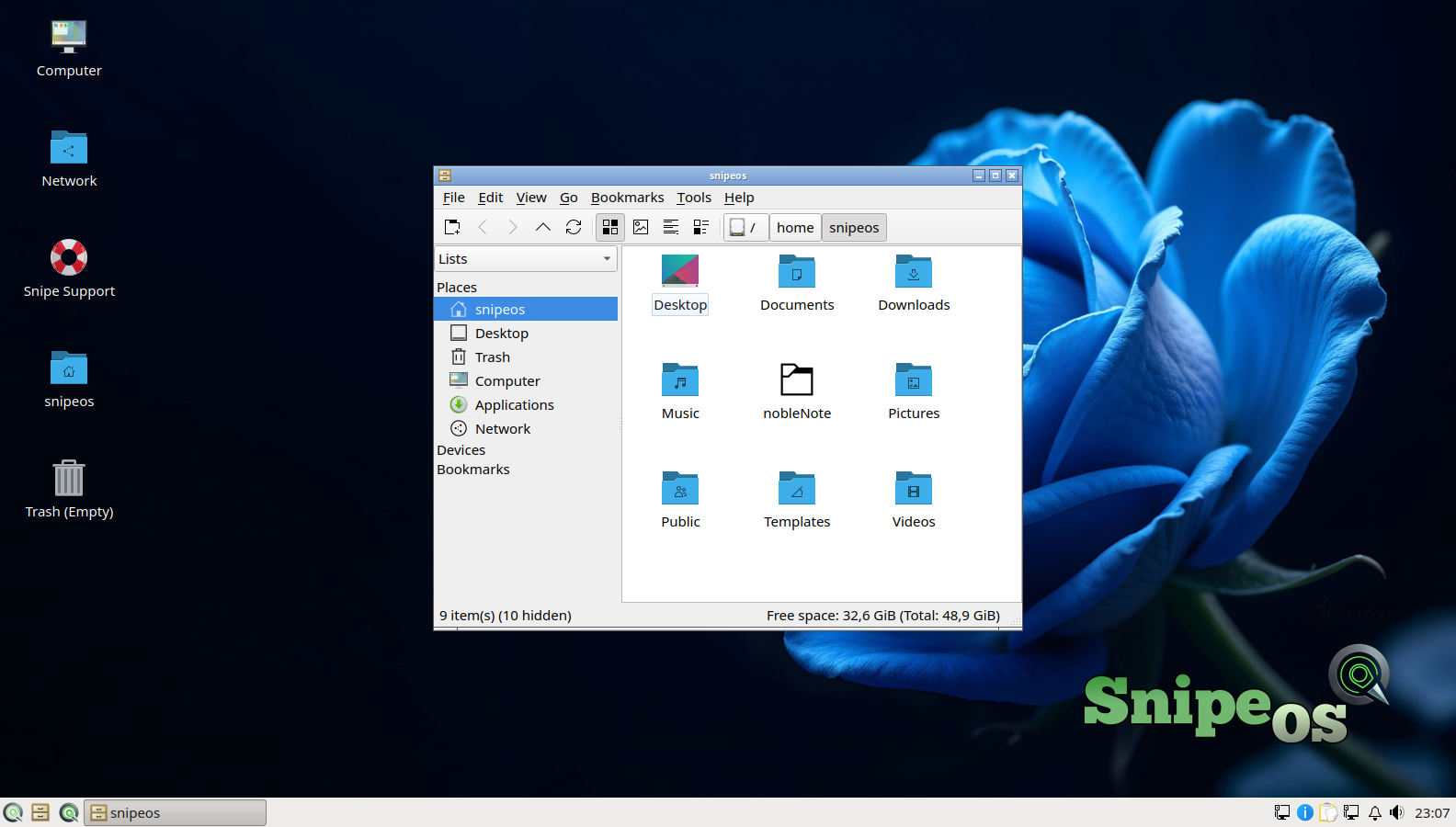
PCManFM-Qt is the LXQt file manager and the quiet centre of the desktop: it draws the desktop icons and wallpaper, browses files with tabs and dual-pane support, mounts USB drives and network shares, manages the trash, handles archives through the archiver, and provides the right-click “open with” fabric that ties every application on SnipeOS together. It is fast in the way only a Qt file manager with no indexing daemons behind it can be, opening large directories instantly on hardware where heavier managers stutter.
Its desktop-drawing role made it a direct participant in the SnipeOS beta story: the wallpaper configuration it reads was the site of the black-desktop bug (a per-screen wallpaper flag with no per-screen wallpapers to show), and the shipping image seeds correct pcmanfm-qt profiles so first login lands on the blue rose every time. Day to day, it is where uploads, downloads, camera cards, project folders, and render outputs all pass through, and its home-folder view is one of the first screens in the installed success gallery.
QTerminal
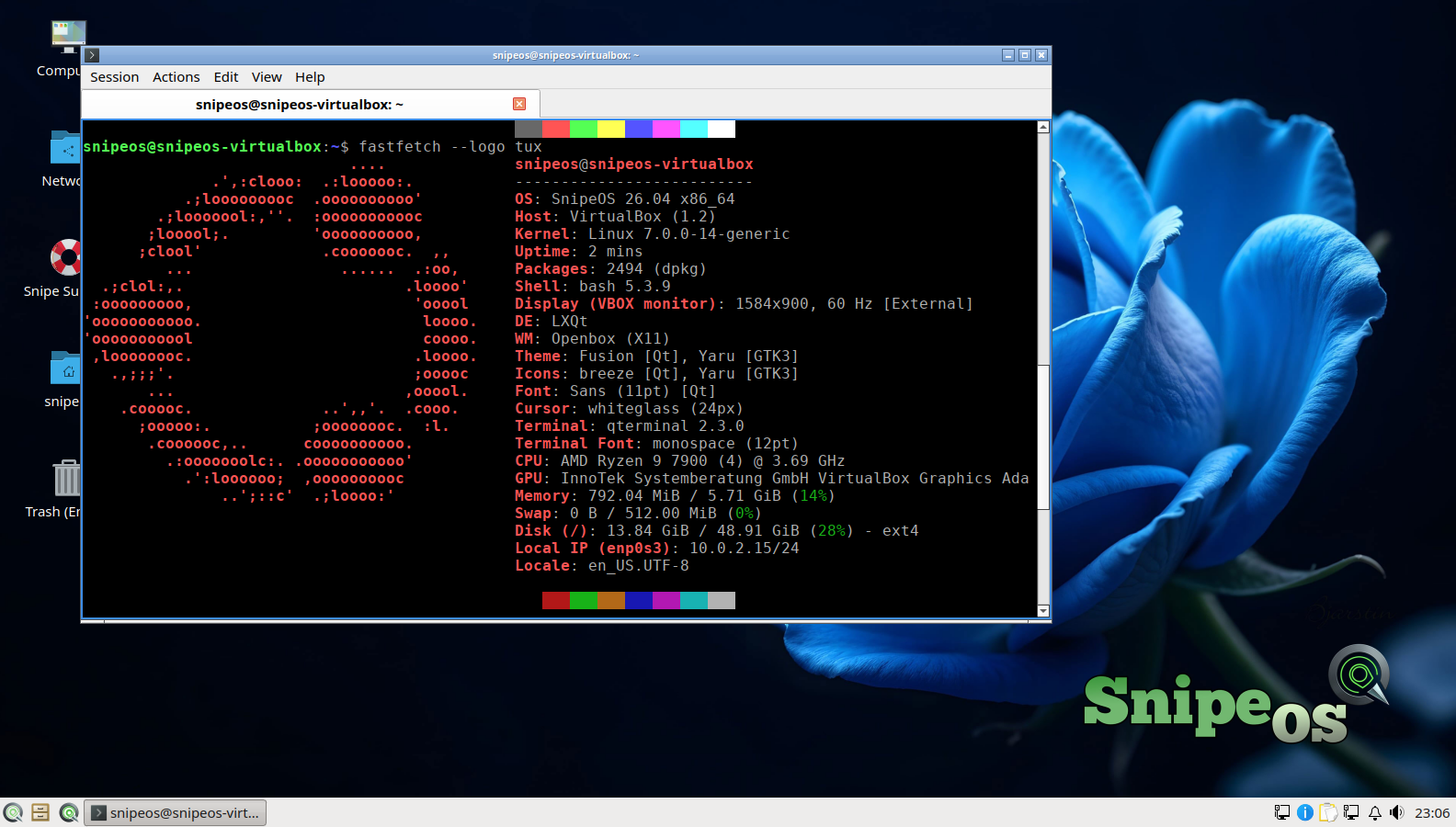
QTerminal is the LXQt terminal: tabs, split views (horizontal and vertical panes in one window), a drop-down mode summoned by a hotkey, configurable fonts and colour schemes, and full compatibility with everything a shell user expects. It is light enough to open instantly and capable enough that there is no reason to replace it.
A terminal on a creator distribution is not an admission of failure; it is a power outlet. Batch-converting a folder of images, running ffmpeg on a screen recording, watching htop during a render, and managing packages with apt are all faster in QTerminal than in any GUI, and SnipeOS’s gallery even shows it running fastfetch, vim, and GNU info as part of validated daily-driver behaviour.
LXQt Archiver
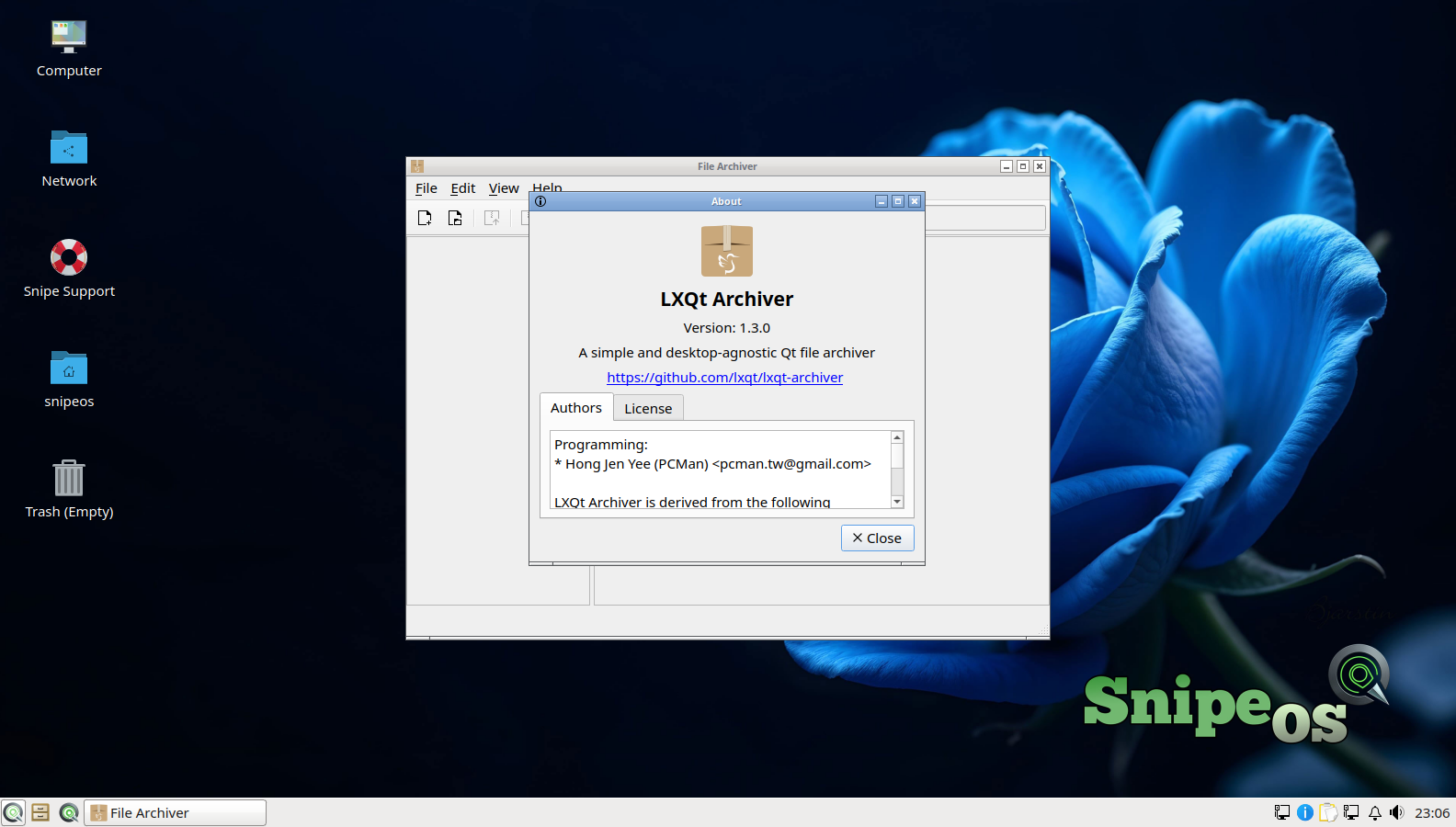
LXQt Archiver is the compression front end, creating and extracting the archive formats that flow through a working desktop: zip, tar in its many compressions, 7z and more through the underlying libarchive tooling. It integrates into PCManFM-Qt’s context menus, so “extract here” and “compress” are right-click operations rather than application launches.
For the SnipeOS audience, archives are constant currency: font packs, brush sets for Krita, Kdenlive title templates, client deliverables, and downloaded assets all arrive compressed. The archiver’s job is to make that friction-free and then get out of the way, which it does.
Qalculate
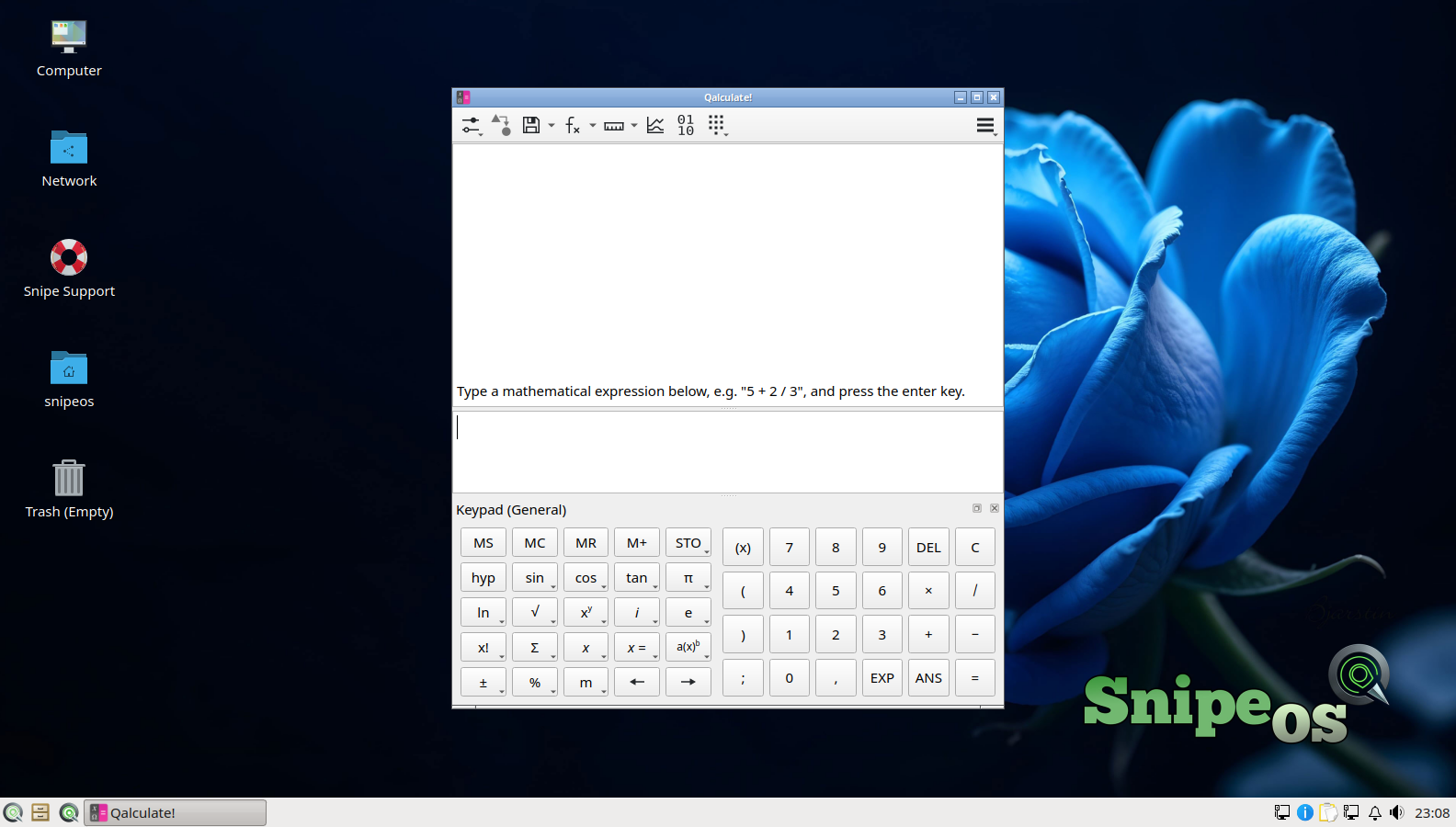
Qalculate is far more than a desk calculator; it is one of the best calculation tools on any platform. It parses natural expressions, tracks units and converts between them (including live currency rates when online), handles symbolic algebra, calculus operations, statistics, plotting, programmable functions, and uncertainty propagation, all from an input line that also accepts plain “2+2.” It is the kind of tool that quietly replaces a spreadsheet for a whole category of quick questions.
On a creator’s desktop it earns its keep constantly: frame counts to timecodes, DPI and print dimension conversions, aspect ratio math, file size and bitrate estimates for OBS and Kdenlive exports, and invoice arithmetic. It launches instantly on anything SnipeOS boots on, and it is validated in the installed gallery.
Qlipper
Qlipper is a small clipboard history manager that sits in the panel tray and remembers what you have copied, letting you recall earlier clipboard entries from a click or a hotkey. It is configurable in depth of history and content handling, and it does its job without a daemon’s weight.
Clipboard history is one of those utilities whose absence is only noticed at the worst moment, usually right after copying over the one piece of text you needed. For writers moving quotes between documents, editors shuttling file paths, and anyone doing research across Snipe Browser and Writer, Qlipper is a tiny tool with outsized daily value.
Redshift
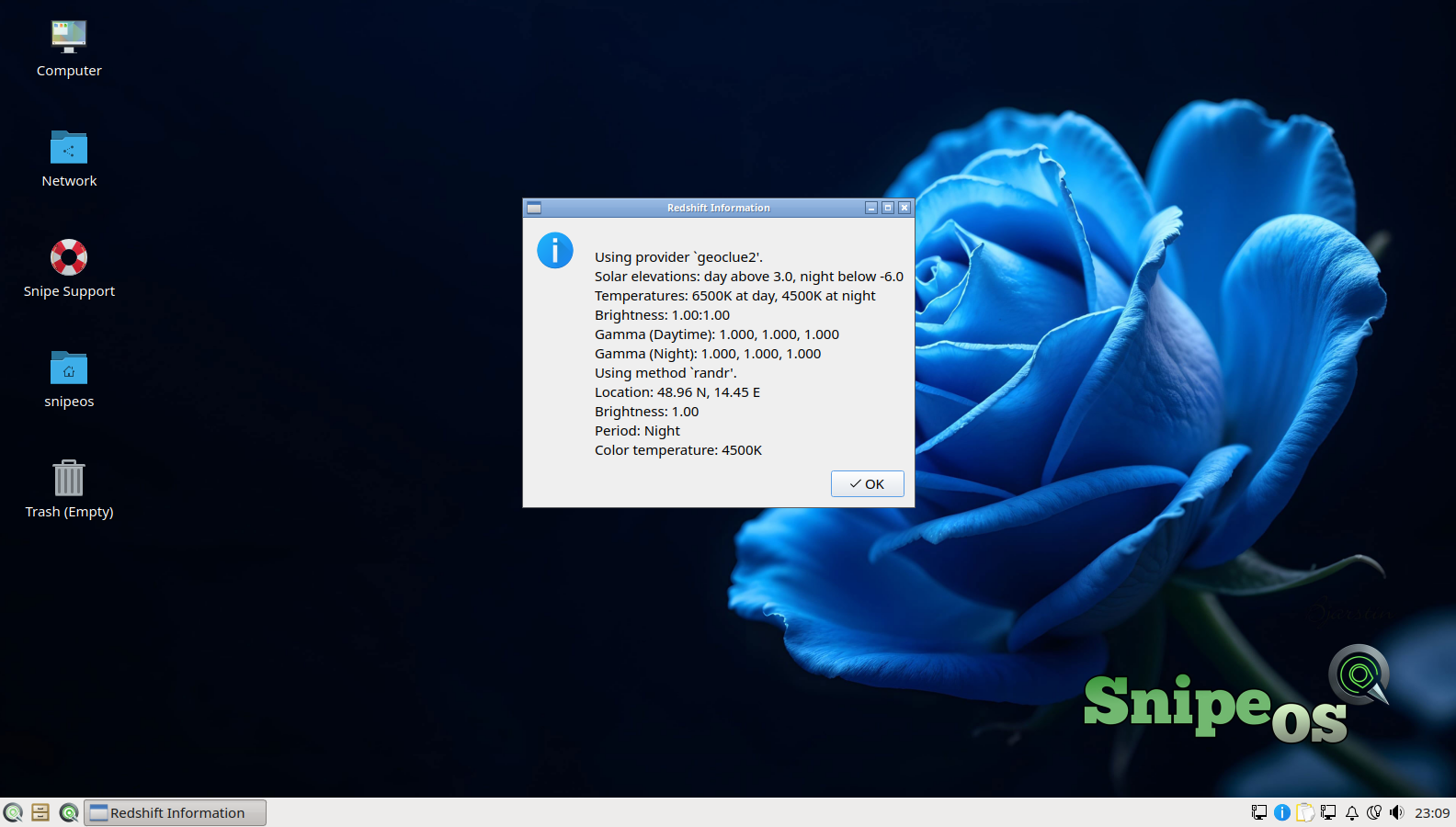
Redshift adjusts your screen’s colour temperature with the time of day, shifting the display toward warmer tones after sunset to reduce eye strain and the sleep disruption associated with blue-heavy light at night. It runs automatically against your location and schedule, with manual override when needed.
There is one important caveat for the creative audience, and SnipeOS’s honest-expectations culture demands it be stated: colour-critical work and Redshift do not mix. When grading footage in Kdenlive, developing photographs in Darktable, or proofing print colour in Scribus, disable Redshift for the session; a warmed screen will bias every colour decision you make. For everything else (writing, browsing, editing text at midnight), leave it on and your eyes will thank you.
QtPass
QtPass is a graphical front end for pass, the standard Unix password manager, storing each credential as a GPG-encrypted file in a plain directory tree. That architecture is the point: your passwords are local, encrypted with your own keypair, versionable with git if you choose, and readable by transparent, auditable tooling rather than a proprietary vault. QtPass provides the browsing, searching, generation, and clipboard integration that make the system comfortable, and its GPG keypair setup and configuration screens are part of the validated gallery.
QtPass and Snipe Browser’s local-only password manager are two expressions of the same SnipeOS philosophy: credentials belong on your machine, not on someone’s server. Users can let the browser handle web logins and keep QtPass for everything else (server credentials, wifi keys, recovery codes), or standardise on QtPass entirely; either way, nothing about your security posture depends on a company’s cloud staying unbreached.
Kvantum Manager
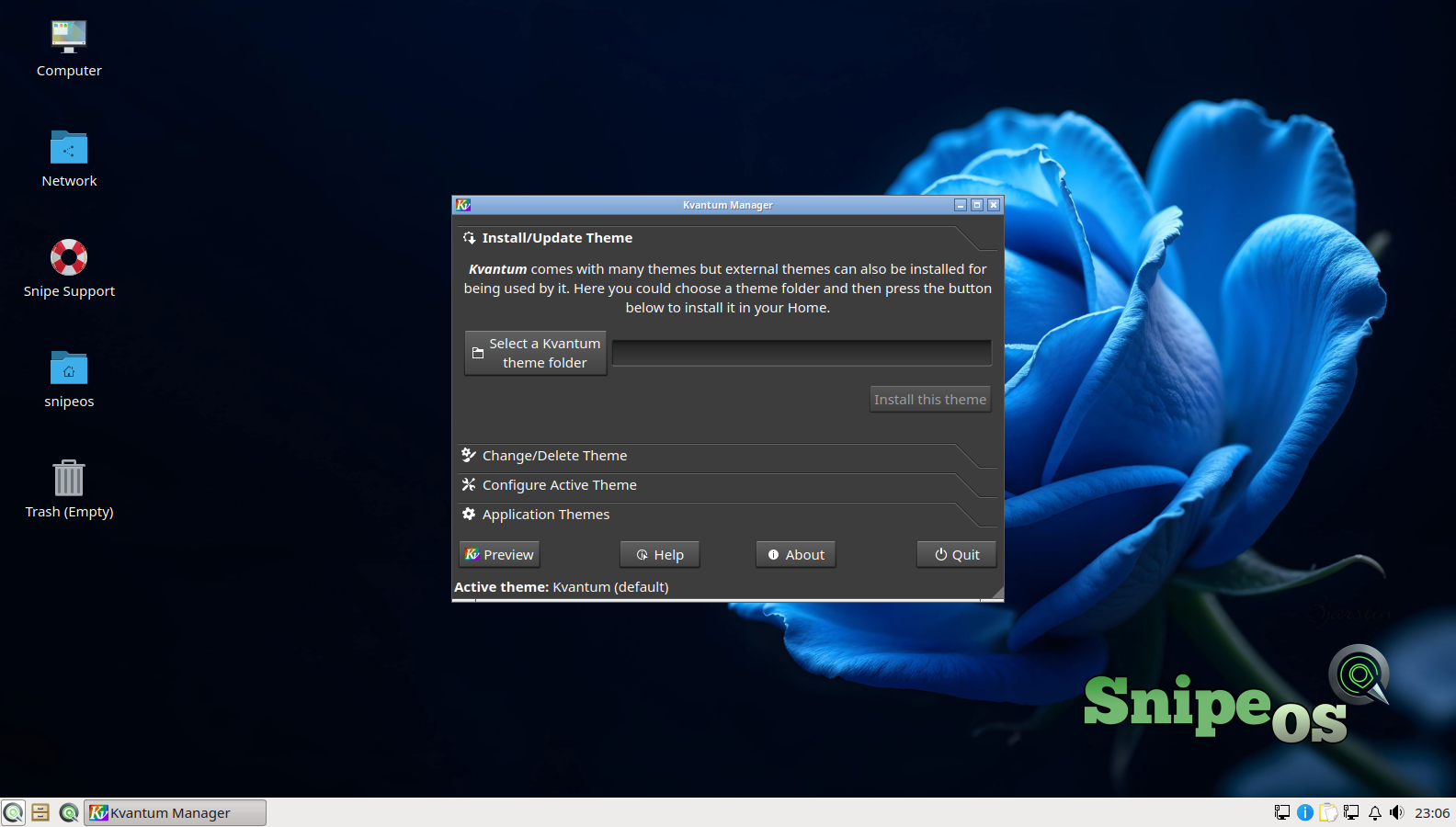
Kvantum is the SVG-based theme engine that styles Qt applications, and its manager lets you install and switch theme packs that restyle the entire application surface of the desktop, from buttons and scrollbars to menus and dialogs. LXQt’s appearance settings work hand in hand with it, and the SnipeOS look itself rides on this machinery.
For users, Kvantum Manager is the deep end of making the desktop yours, beyond wallpaper and icon choices. The beta’s icon-theme wars (documented in the development arc) also left SnipeOS with unusually disciplined theming hygiene: the image never tramples the Papirus symlink trees, ships its own art through hicolor and pixmaps, and leaves the theming stack clean for user customisation.
SDDM and the SnipeOS session
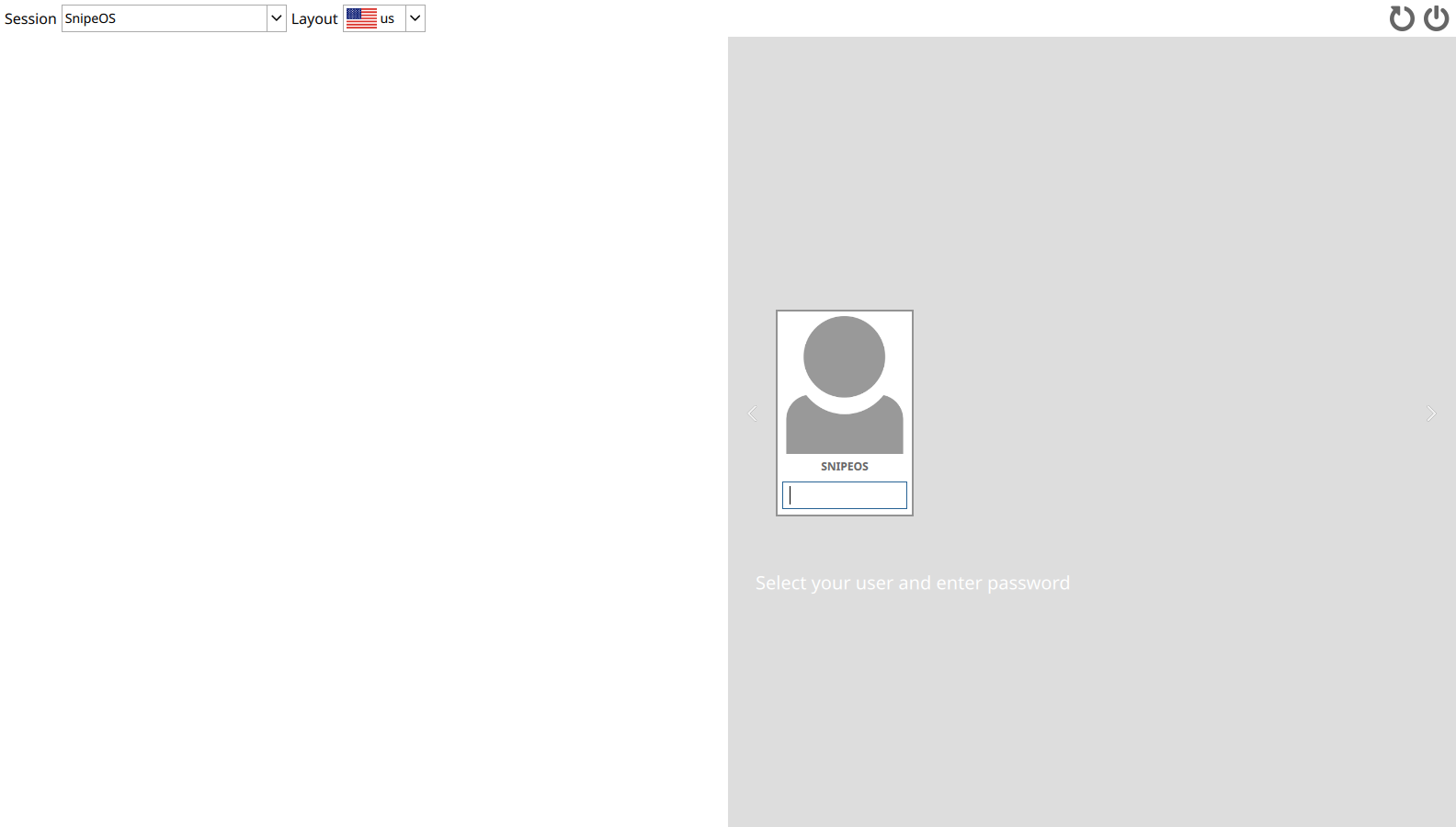
SDDM is the display manager that greets you at boot, and on SnipeOS it wears the full SnipeOS theme: Snipe wallpaper and wordmark, the SnipeOS session preselected, and an uncluttered session list with the redundant entries (raw LXQt, Openbox, Kodi’s session modes) hidden. Autologin, if chosen at install time, is honoured through SDDM’s configuration, and the greeter’s theming is enforced by the image rather than left to alternatives-system chance, a distinction the beta earned the hard way.
The session it launches is LXQt declared under the SnipeOS name through a proper session desktop file with correct DesktopNames, which means every tool that keys off the desktop environment identifier behaves exactly as it would on Lubuntu while the human-facing identity is consistently SnipeOS. This is the kind of invisible correctness that separates a coherent distribution from a reskin.
SnipeOS Update
The update tool presents as SnipeOS Update and is, underneath, the stock Lubuntu updater binary running unmodified against the Ubuntu 26.04 archive. That combination is a deliberate scar-tissue decision: a beta experiment that binary-patched the updater’s internal Lubuntu strings also rewrote its Qt and DBus identifiers and produced a crash loop, so the shipping product brands the title and leaves the machinery alone. Updates are consequently as boring and reliable as on stock Lubuntu, which is the highest compliment an updater can receive.
The updater is also sensibly context-aware: on the live session it is a no-op via the snipeos-update-autostart helper, because updating a read-only live system is meaningless and earlier builds proved the attempt would crash. On the installed system it notifies and applies updates normally for the full LTS support window through April 2029.
htop
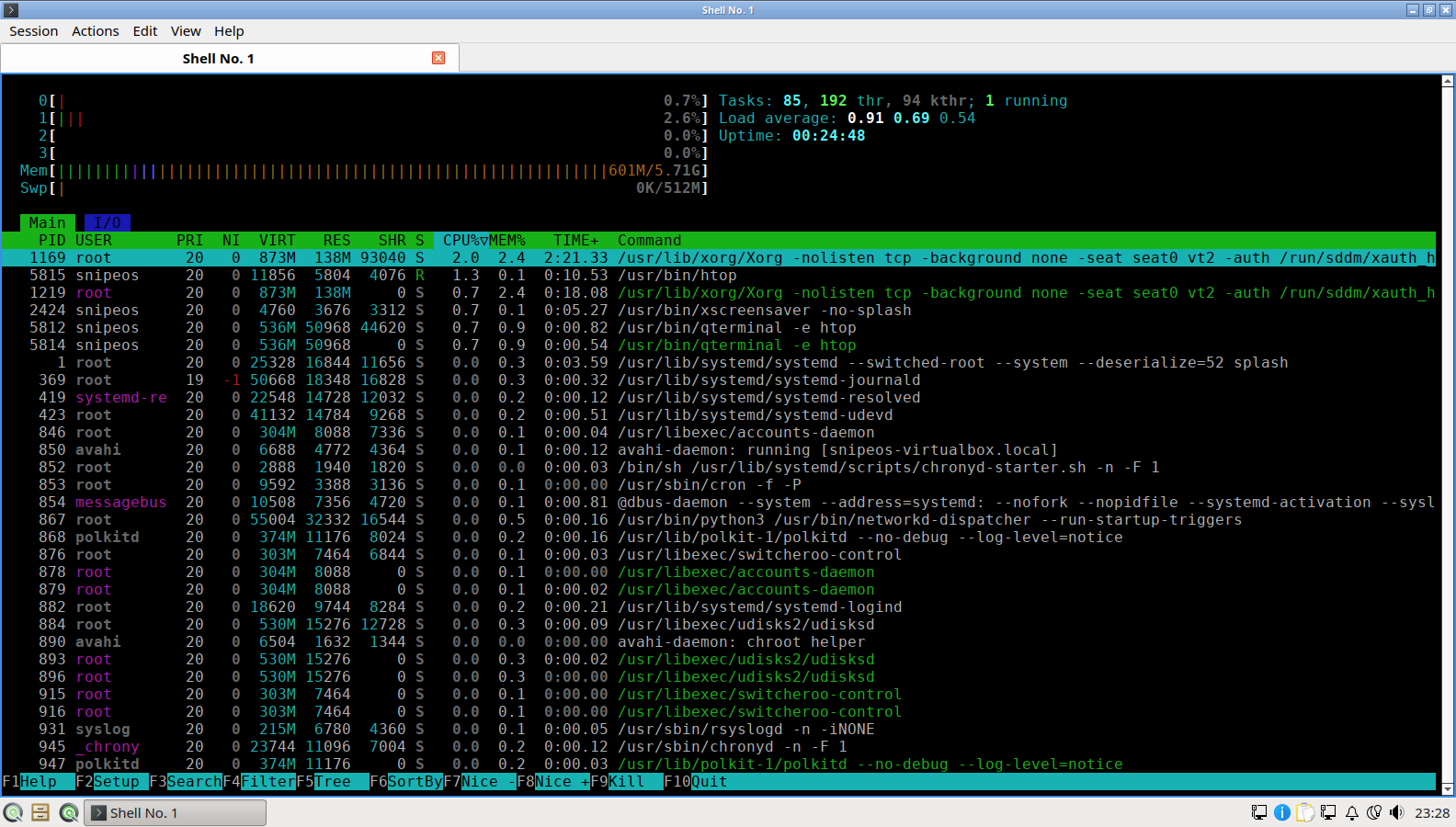
htop is the interactive process viewer that turns a terminal into a live dashboard of the machine: per-core CPU meters, memory and swap bars, a sortable, searchable process tree, and direct actions (renice, kill) on selected processes. It is the first tool to open when anything feels slow and the honest way to answer “what is this machine actually doing?”
On SnipeOS it has particular value at the hardware extremes the distribution supports. On a 512 MB curiosity install or a 2 GB daily driver, htop shows exactly where memory goes and confirms how light the LXQt base truly is; during a Blender render or an OBS stream, it shows the cores working and helps tune settings to the machine. It is part of the validated gallery for exactly that reason.
vim, GNU info, and fastfetch
The terminal toolkit rounds out with vim, the modal text editor that remains the fastest way to edit configuration and code once learned, and whose presence means the system is always administrable even from a bare console; GNU info, the documentation reader for the deep manuals that accompany GNU tooling; and fastfetch, the system information tool that prints the SnipeOS logo beside a summary of OS, kernel, uptime, and hardware, the traditional first screenshot of any proud install, and, fittingly, part of the SnipeOS gallery itself.
These tools are inherited infrastructure rather than SnipeOS additions, and that is the point: beneath the branding and the creative stack, this is a standard, fully stocked Ubuntu-family system that any Linux experience transfers to directly. Nothing about SnipeOS locks you into GUI-only administration.
 Snipe
Snipe