 Snipe
SnipeInstall
Live boot, Calamares, first login
Get the ISO first, write it with Rufus or burn a dual-layer DVD, try the live desktop, then install with Calamares. Prefer watching? See the guide videos.
Get the ISO
Download SnipeOS-26.04-amd64-b26.iso (about 5.4 GB) from the download page. If the direct Archive.org link is slow, use the BitTorrent file instead. A single-layer DVD is too small; use a dual-layer disc, or write the image to USB with Rufus on Windows.
Installation video
From live boot through Calamares to the finished desktop. USB writing is covered separately in the USB preparation video.
Live boot
The ISO is a full live system. Boot it from USB or DVD and run the complete desktop, with every application described in this site, without touching your hard disk. Confirm graphics, keyboard, display resolution, and wireless before you commit.
You first see the SnipeOS GRUB menu with branded art, then the Plymouth splash with the SnipeOS logo animation while casper assembles the layered squashfs stack. The live desktop lands on the blue rose wallpaper with the trusted Install SnipeOS launcher and the Snipe Support link.
If the machine freezes or reports out of resources before GRUB appears, disable Fast Boot and Secure Boot in firmware first. Full steps: Freeze before GRUB.
The live session is the most memory-hungry way to run SnipeOS. If it is usable on your machine, the installed system will be comfortable.

The installer
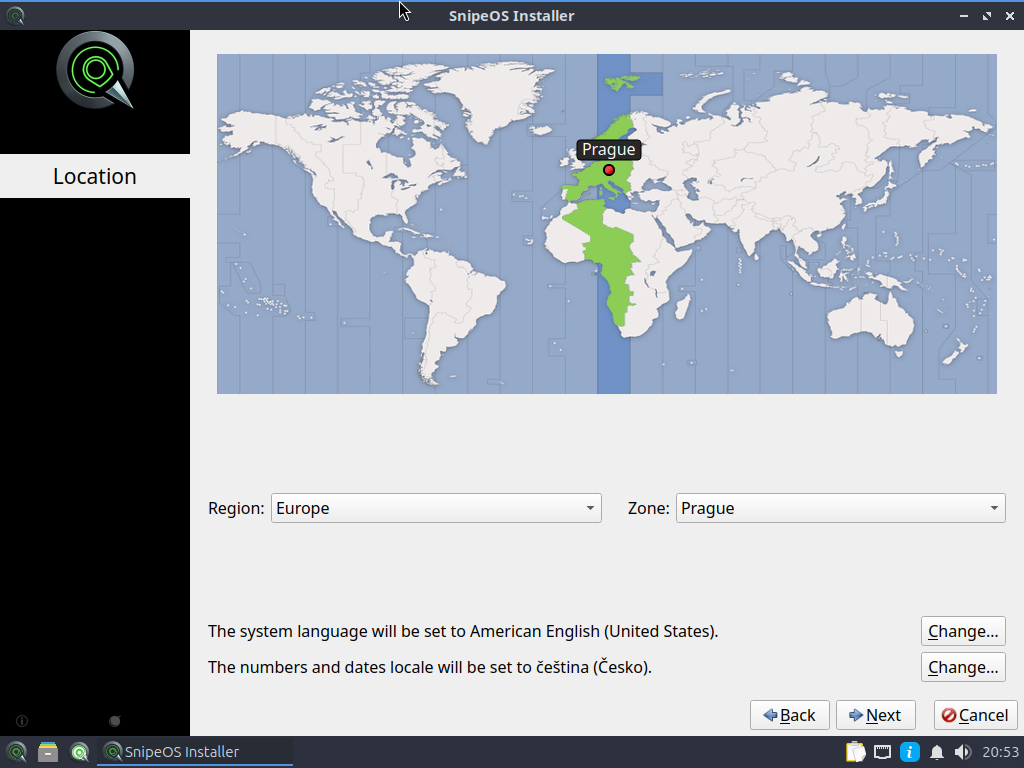
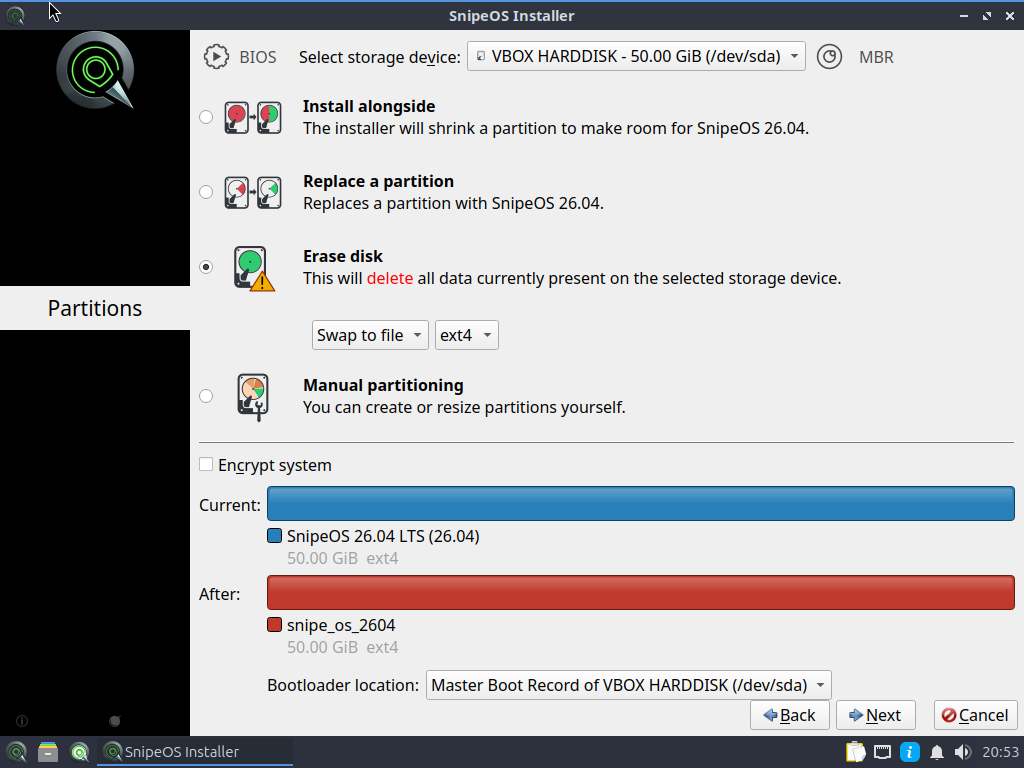
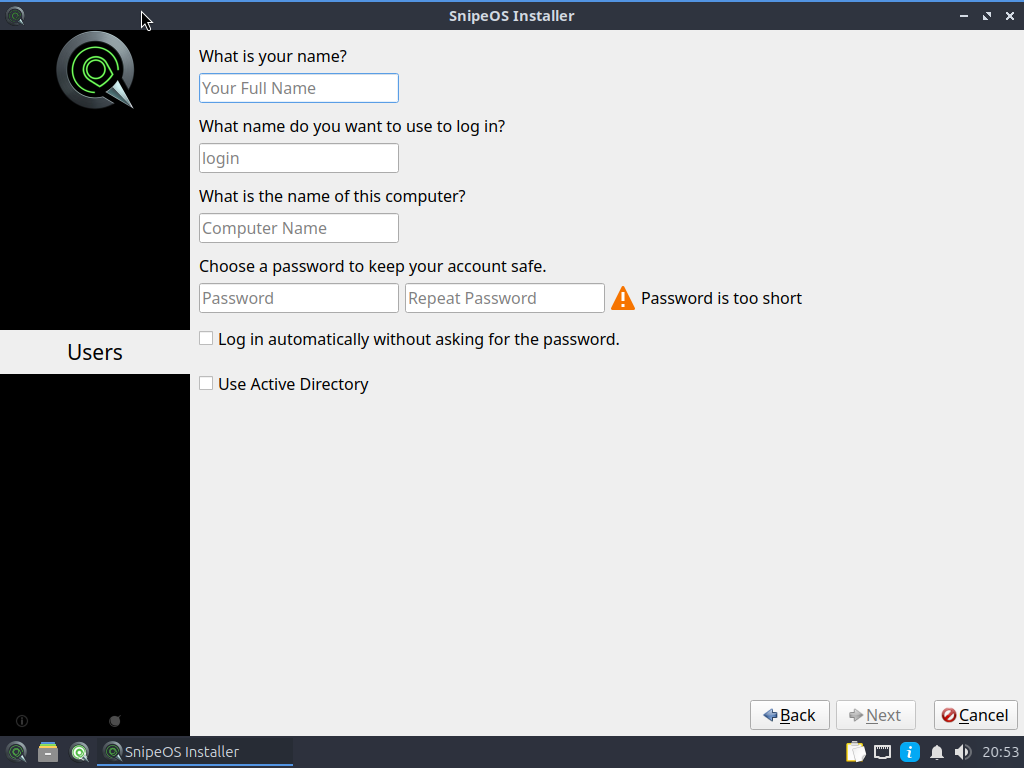
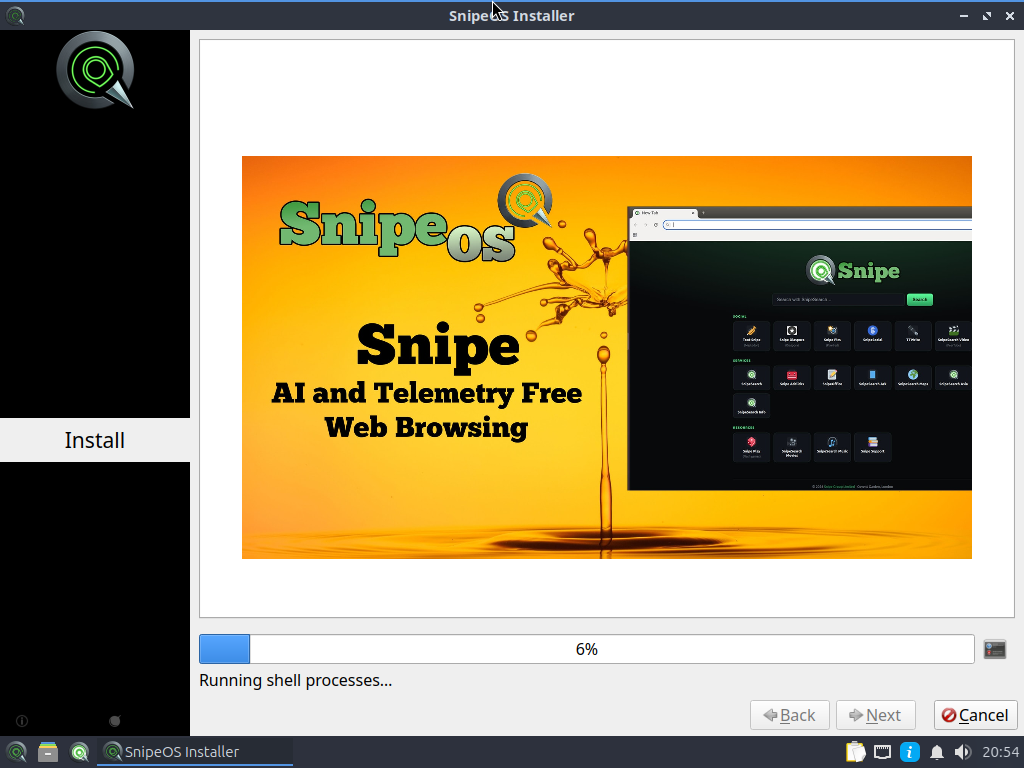
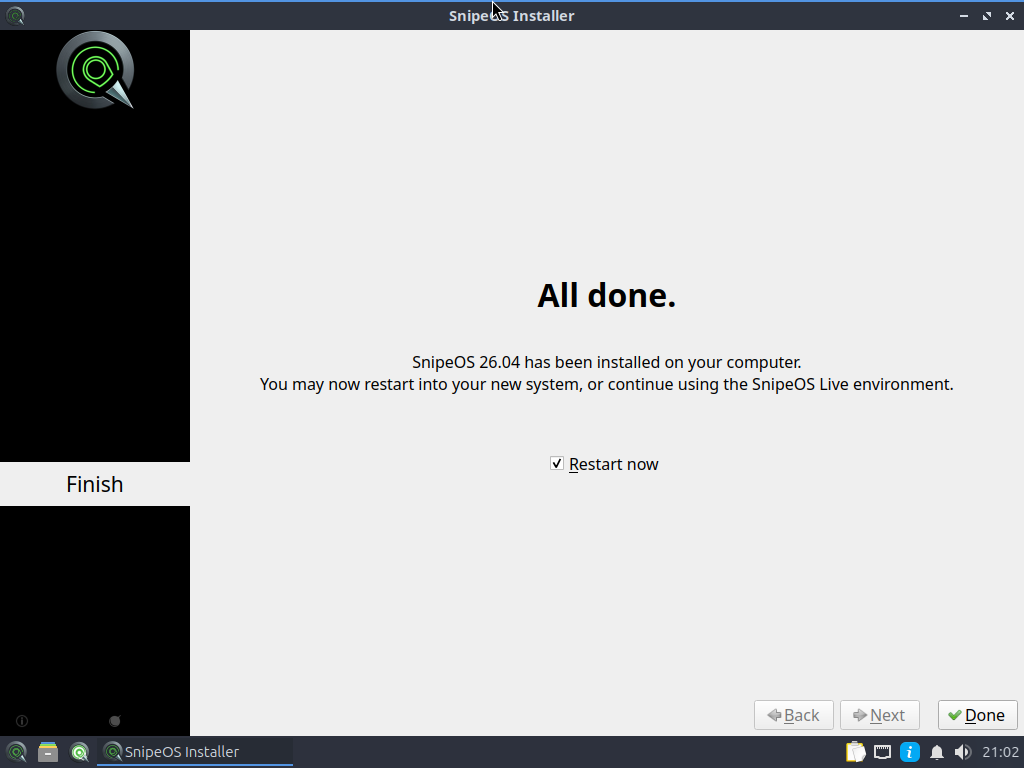
SnipeOS installs through Calamares with full Snipe branding and SnipeOS-specific modules. Flow: welcome and language, location, keyboard, partitioning, user creation, summary, install with slideshow, finish.
Welcome links for Donate, Support, Known Issues, and Release Notes open in Snipe Browser as the live user. Partitioning offers erase disk (labels snipe_os_2604 / snipeos_boot), install alongside, or manual. Encryption is available in the usual Calamares manner.
Behind the slideshow, snipeos-calamares-unpack mounts the five system layers as a read-only overlay, resolves whiteouts, and rsyncs the merged tree. That is why installs are coherent systems rather than layer collisions.

The long pause near 6 percent
The progress bar typically jumps to about 6 percent quickly, then appears to freeze for roughly ten minutes before racing to the end. It is not stuck.
That pause is the overlay unpack copying the entire merged operating system to disk as one Calamares step. Watch the USB activity LED on the pen drive. Do not power the machine off during this window.
On tight-RAM machines the live screensaver can blank the display while the install still runs. Nudge the mouse about once a minute during install to avoid it. If the screen will not wake, wait for the USB LED to stop flashing, press Enter twice, then hard power off, remove the USB, and boot again (the install is often already complete). Full steps: Screensaver during install.
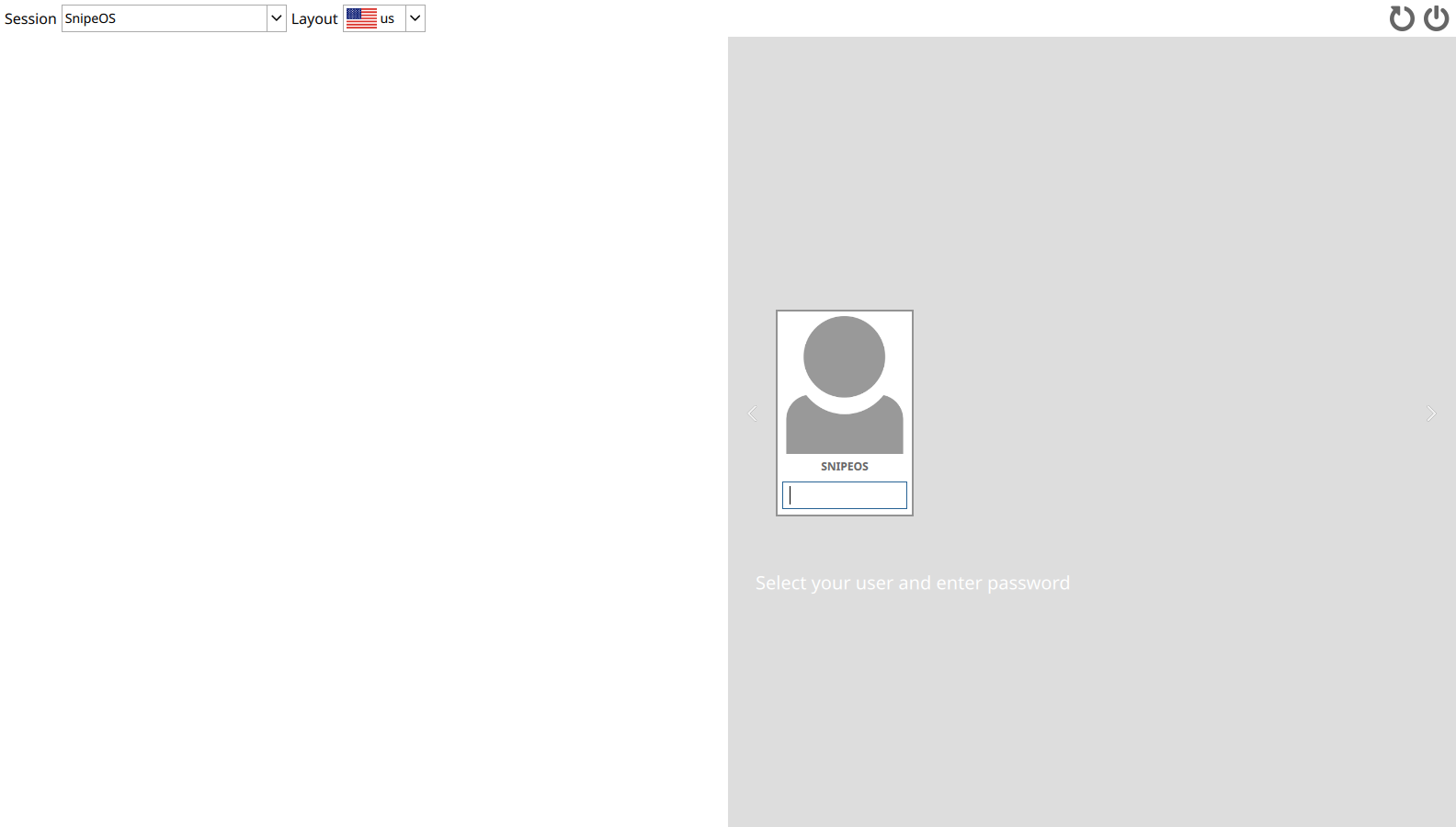
When Calamares finishes normally, remove the USB or DVD, reboot, and the machine comes up on the SnipeOS login screen.
First login and beyond
SDDM greets you with the SnipeOS theme. The session selector reads SnipeOS. Redundant entries (raw LXQt, Openbox, Kodi sessions) are hidden.
Menus are organised for the stack: Internet, Office, Graphics, Sound and Video, Games, Accessories, Preferences, System Tools. Favorites are curated for daily use. The update tool presents as SnipeOS Update and runs the stock updater against the Ubuntu 26.04 archive through April 2029. For the full SnipeOS maintenance one-liner (sources, packages, branding, cdrom fixes), see the update guide.
GRUB, EFI, and the boot chain
On BIOS systems, Calamares installs grub-pc normally. On UEFI systems, signed EFI GRUB and shim must land in the EFI System Partition from the ISO package pool via cdrom.sources.
SnipeOS defends this three ways: snipeos-calamares-prep-efi-apt restores the ISO pool apt source before the bootloader stage, EFI packages are seeded into the tip layer, and snipeos-calamares-verify-efi inspects the ESP afterward. If no bootloader landed, the install fails loudly instead of reporting success.
Need help after install? See Update guide and Troubleshooting.