On Windows or Linux? See all downloads →  ·  Need Mac OS X 10.7–macOS 11? Mac Legacy channel →  ·  This page is macOS 12+ (Chromium 124; not Windows/Linux 140)
macOS 12 and up · x86_64

Snipe for macOS

Chromium 124 on macOS 12 (Monterey) and higher, tested on Macs as far back as 2012. De-Googled, uBlock Origin and Ruffle in the core, SnipeSearch new tab, zero telemetry.

Based on Chromium 124.0.6367.207.1 · x86_64 · © 2026 Snipe Group Limited
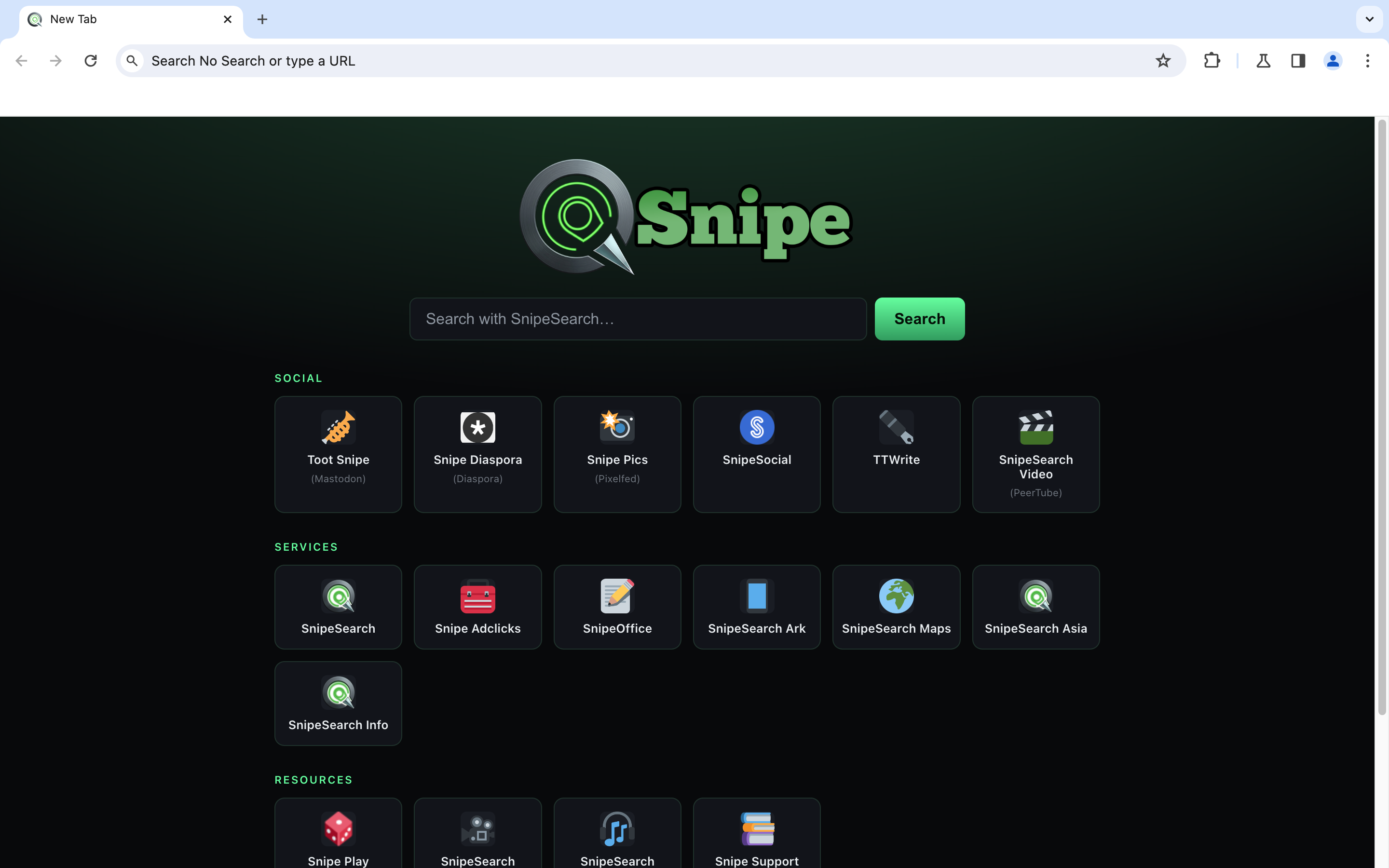
Snipe new tab on macOS 12
12+
macos monterey+
x86_64
intel mac
124.x
channel
Zero
Google telemetry

Separate Mac channel (Chromium 124, not Windows/Linux 140)

This is the macOS 12 and up build of Snipe: Chromium 124 / Blink, version 124.0.6367.207.1 (Official Build, Snipe Browser). It is a separate release line from the Windows and Linux 140.x desktop builds. Confirm your install with the browser detector.

Desktop install

How to install Snipe on macOS

Package file: Snipe-12-UP.zip. Download, unzip, drag Snipe.app into Applications, then open it. First launch may need a Gatekeeper allow.

Desktop (download, unzip, Applications)

Download the ZIP from this page. Double-click to unzip, then drag Snipe.app into your Applications folder (typical). Launch Snipe from Applications or Spotlight.

Optional: when prompted that Chromium isn’t your default browser, choose Set as default.

⬇ Download .zip

Gatekeeper / unidentified developer

macOS may block first launch (“can’t be opened because it is from an unidentified developer” or Apple could not verify it). That is Gatekeeper, not Snipe telemetry.

1. In Finder, Control-click Snipe.appOpen → confirm Open (works through Sonoma; use Finder, not Launchpad).

2. If the dialog only offers Done / Move to Trash (common on Sequoia): try open once → System SettingsPrivacy & Security → scroll to Security → Open Anyway → authenticate.

Monterey: System Preferences → Security & Privacy → General → Open Anyway. Full guide: Help · macOS Gatekeeper.

What's in the build

Everything built in, nothing phoning home.

SnipeSearch as the new-tab portal, uBlock Origin in the core, Ruffle for Flash content, a local password manager, and a macOS ⌘Q quit warning in Appearance, all without Google services, AI, or background telemetry.

🛡

Core Adblocker

uBlock Origin compiled into the binary. Blocks tracking networks with a curated whitelist for privacy-respecting ads.

🎮

Ruffle / Flash

Built-in Flash emulation, games and legacy interactive content run inside the modern sandbox without additional plugins.

🔍

SnipeSearch Default

Private search routing from the new-tab portal out of the box (no Google as the default engine).

🔑

Local Storage

Offline password manager and autofill kept on-device. No forced cloud sync or AI components.

macOS 12+

Built for Monterey and higher, tested on Macs as far back as 2012, including Core 2 Duo machines and later Intel Macs.

📦

ZIP package

Download the ZIP, unzip, drag Snipe.app to Applications (no installer wizard required).

🌙

Background Off

Closing the window kills all Snipe processes (no tray icon, no lingering RAM use). Appearance includes a ⌘Q quit warning.

🚫

Zero AI

No on-device models, no cloud assistants, no generative tools baked in.

Download · v124.0.6367.207.1

Run Snipe on macOS 12 and up.

macOS 12 (Monterey) and higher. This is the Mac Chromium 124 channel (not the Windows/Linux 140 line). Package hosted on snipebrowser.com (direct ZIP). Full product notes: Snipe macOS 12 and up reference. If you would like to try SnipeOffice, it is available as a separate download.

macOS 12 and up · x86_64

ZIP package (.zip)

Desktop: Download Snipe-12-UP.zip, unzip it, then drag Snipe.app into Applications. On first open, use right-click → Open (or allow under Privacy & Security) if Gatekeeper blocks the app.

Direct link: served from this site (not Archive.org).

⬇ Download .zip

macOS 12 and up (requirements)

Support

Frequently asked questions.

macOS says Snipe is from an unidentified developer — how do I run it?

Expected for a ZIP-distributed browser outside the Mac App Store. Same issue on Monterey through Sequoia.

Through Sonoma: In Finder, Control-click (right-click) Snipe.appOpen → confirm Open.

Sequoia / when Control-click fails: Open the app once (click Done if that is all you get) → System SettingsPrivacy & Security → under Security click Open Anyway → enter your password / Touch ID → confirm Open.

Monterey: System Preferences → Security & Privacy → General → Open Anyway after a blocked attempt.

Full walkthrough: Help · When macOS blocks Snipe.

Is this the same as Windows / Linux 140?

No. macOS ships on a separate Chromium 124 channel: 124.0.6367.207.1. Windows and Linux desktop builds are on the 140.x line.

What about Mac OS X 10.7 through macOS 11?

Those releases use the separate Mac Legacy channel (MacLegacy/… in the user agent). Same Chromium 124 family for now, but a different update path so macOS 12+ can move ahead later.

How do I check my version?

Open Settings → About Snipe, or go to chrome://settings/help. You should see Version 124.0.6367.207.1 (Official Build, Snipe Browser) (x86_64). You can also use the browser check page.

How do I import my Google or Brave passwords?

Export them as a CSV from Google Password Manager or Brave, then import that file into Snipe’s local Password Manager (open chrome://password-manager/settings and use Import passwords). Full walkthrough with screenshots: Import Google / Brave passwords into Snipe.